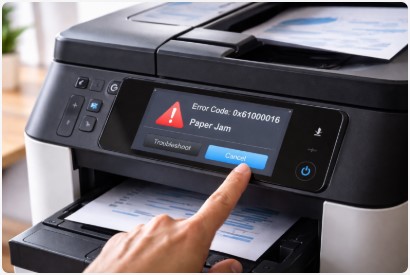
Printer error codes can be confusing and intimidating, especially when they appear unexpectedly in the middle of an important print job. However, these codes are actually helpful diagnostic tools designed to pinpoint specific issues. Understanding what common error codes mean can save you time and help you resolve problems quickly without needing professional assistance. This guide explains some of the most frequently encountered printer error codes and provides practical solutions for each.
Paper Jam Related Error Codes
One of the most common categories of error codes relates to paper jams. Codes such as E0, 13.xx.xx, or Paper Jam 0 typically indicate that paper is stuck somewhere inside the printer. The exact location of the jam is often indicated by the code or a diagram on the printer's display panel. To resolve these errors, open all accessible covers and carefully remove any jammed paper. Be sure to check the input tray, output tray, and any rear or duplex access panels. After clearing the paper, close all covers and reset the printer. If the error persists, there may be small fragments of paper remaining inside. Use a flashlight to inspect the paper path thoroughly and remove any debris you find.
Cartridge and Ink Related Codes
Error codes that mention cartridges, ink, or toner are also very common. Codes like Replace Cartridge, Ink System Failure, or Toner Low indicate issues with your print cartridges. If you see a message that a cartridge is not recognized, try removing the cartridge and reinstalling it firmly. Check for any protective tape or packaging that may have been left on a new cartridge. Clean the copper contacts on the cartridge with a dry lint-free cloth and also clean the corresponding contacts inside the printer. For low ink or toner warnings, you can usually continue printing for a while, but replacing the cartridge is the only permanent solution. Some printers have a feature that allows you to disable low-ink warnings in the settings if you prefer to use cartridges until they are completely empty.
Connectivity and Communication Errors
Errors related to connectivity, such as Printer Offline, Communication Error, or Connection Failed, are particularly common with network printers. Start by checking that your printer is turned on and connected to the same network as your computer. Restart both your printer and your router. On your computer, open the Devices and Printers section, right-click your printer, and ensure it is set as the default printer. If it shows as offline, select See What's Printing and then click Printer to uncheck Use Printer Offline. For USB-connected printers, try a different USB port or cable. Communication errors can also be caused by corrupted print jobs. Clear the print queue by canceling all pending documents and restarting the print spooler service.
General Error Codes and Maintenance Messages
Printers also display general service error codes that may require more advanced troubleshooting. Codes like Service Required, General Error, or Error 0x… often indicate a hardware issue or that the printer has reached its maintenance threshold. In many cases, a simple power cycle can resolve these errors. Turn off the printer, unplug it for at least 60 seconds, and then plug it back in and turn it on. If the error persists, consult your printer's manual or the manufacturer's support website for code-specific guidance. Some errors indicate that the printer needs routine maintenance, such as replacing a maintenance kit or fuser unit. Keeping a record of any recurring error codes can be helpful if you need to contact technical support for assistance.