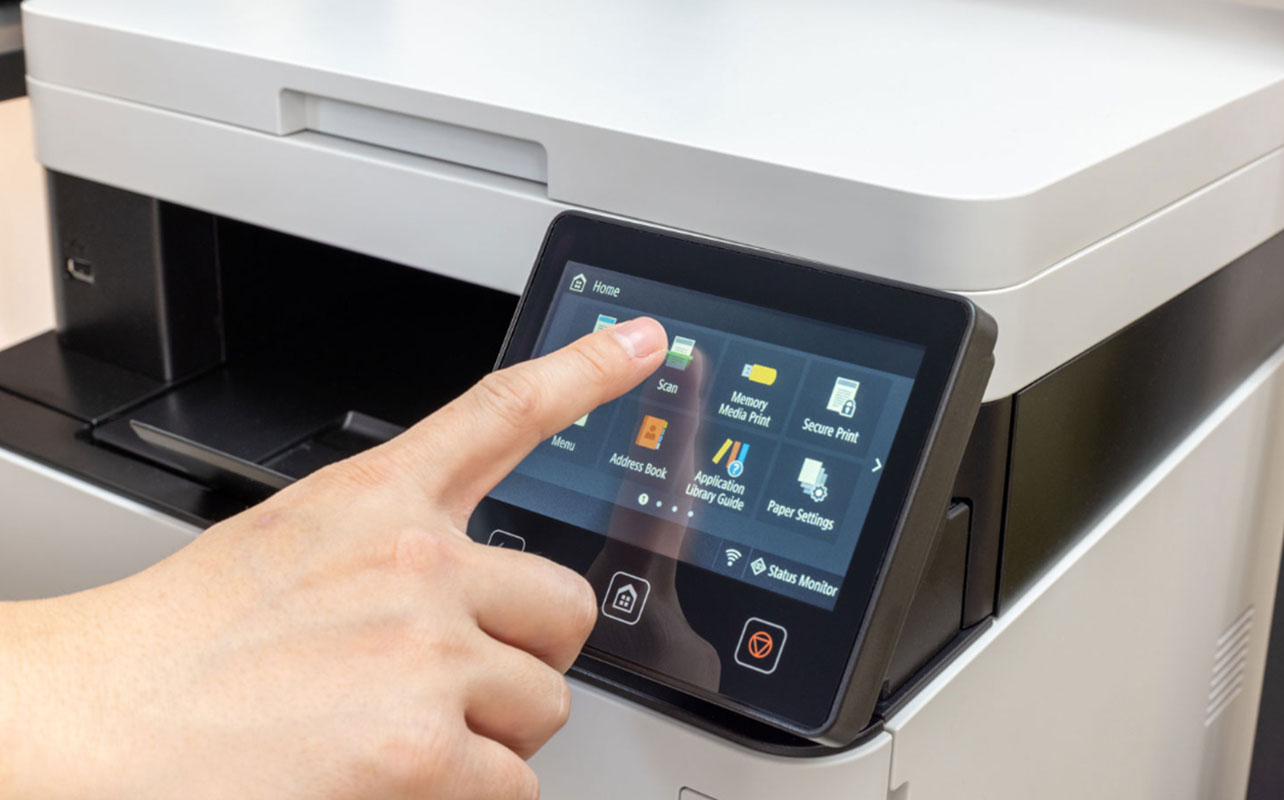
Wireless printing has become a standard feature in modern printers, offering the convenience of printing from anywhere within your home network. Setting up wireless printing may seem daunting at first, but with the right guidance, you can have it working in no time. This guide covers everything you need to know about connecting your printer to your Wi-Fi network and enabling wireless printing on all your devices.
What You Need Before Starting
Before you begin the setup process, make sure you have the following ready. You will need a printer that supports wireless connectivity, which most modern printers do. Your home Wi-Fi network should be active and stable, and you should know your network name and password. Have your printer model number handy, as you may need it to download the correct software. Finally, ensure your computer or mobile device is connected to the same Wi-Fi network that you intend to connect your printer to.
Step-by-Step Wireless Setup
The exact setup process can vary slightly depending on your printer model, but the general steps are consistent. Start by turning on your printer and accessing the network or settings menu from the control panel. Look for an option labeled Wireless Setup, Network Setup, or Wi-Fi Wizard. Select your home Wi-Fi network from the list of available networks and enter your password when prompted. Once the printer confirms it is connected to the network, install the printer software on your computer. Most printers come with a setup CD, or you can download the software from the support website. During installation, choose the wireless or network connection option. The software will automatically detect your printer on the network and complete the setup. For mobile devices, download your printer manufacturer's app from your device's app store. The app will guide you through connecting to the printer and enable wireless printing from your phone or tablet.
Troubleshooting Wireless Connection Issues
If your printer fails to connect to Wi-Fi, try these solutions. First, restart both your printer and your router. This simple step resolves many connection problems. Ensure your printer is within range of your Wi-Fi router, as walls and distance can weaken the signal. Check that you entered the correct Wi-Fi password. Passwords are case-sensitive, so double-check for any typing errors. If your printer supports WPS, you can use the WPS button on your router for a simpler connection. Press the WPS button on your router, then select WPS on your printer within two minutes. If you continue to experience issues, check if a firmware update is available for your printer, as updates often improve network compatibility. With patience and these troubleshooting steps, you should be able to establish a stable wireless connection and enjoy the freedom of wireless printing throughout your home.
Wireless printing eliminates the need for cables and allows multiple devices in your home to share the same printer. Once set up correctly, it provides a seamless printing experience that is both convenient and efficient.